Feezible user guide

Use the model engine from left to right: assumptions in, staffing story out.

Feezible is a project budget and staffing model engine for architects. The left side is where you describe the project. The right side shows what those choices mean for fee, hours, sheets, roles, phases, and exports.

Step 01

Orient yourself before editing numbers.

The model engine is intentionally split into two working zones. Inputs live in the left column. Results live in the larger right column. Most users should move top to bottom on the left, then read top to bottom on the right.

  • Use the left column for the starting point, fee, sheet count, rates, and project profile. Firm rules of thumb live in the Model settings drawer.
  • Use the right column to compare Budget-First and Sheet-First outcomes.
  • Use Undo and Redo if an input change takes the model in the wrong direction.
  • Every card on the left has a Show or Hide button. Collapse the ones you are not using so the column stays short.
  • Hover the small question mark on any card title, or the i next to a field, for a plain-language explanation.
The Feezible start screen showing the input column on the left and the results dashboard on the right.
The opening view: inputs on the left, live results on the right.
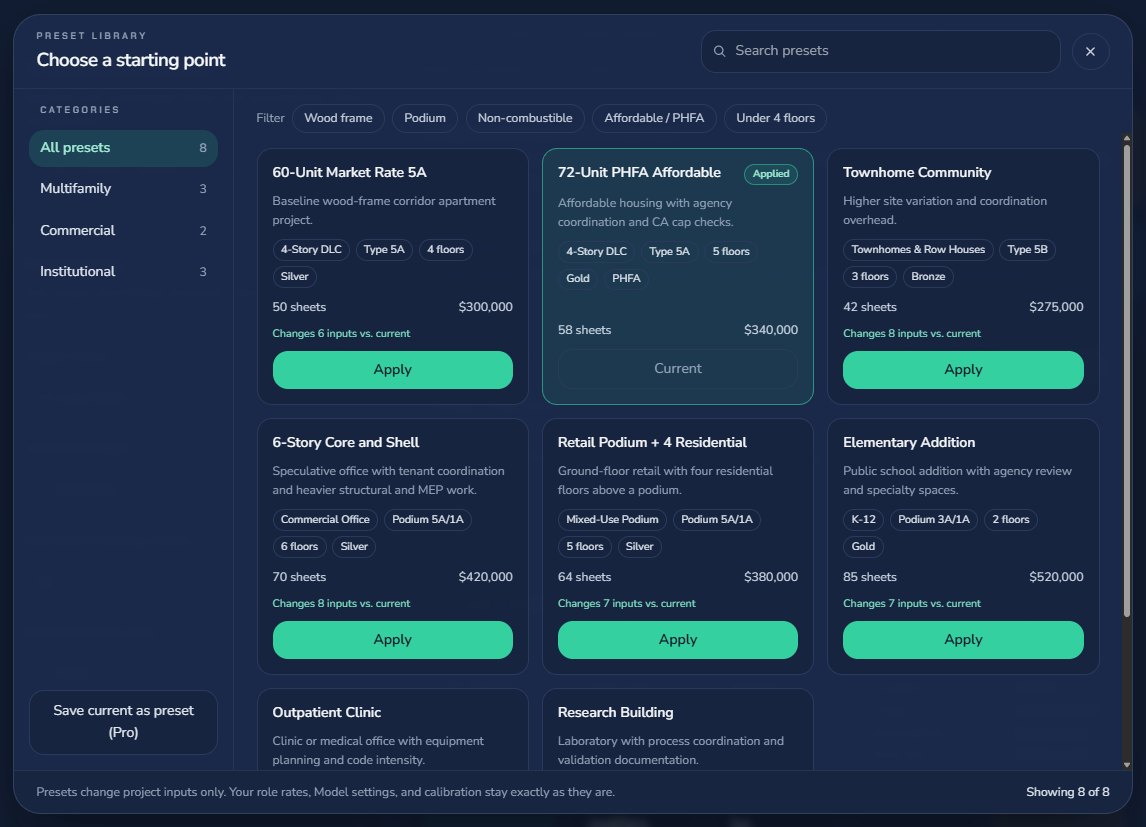
The preset library modal: categories on the left, preset tiles with values, change counts, and Apply buttons.
The preset library groups starting points by sector and shows what each one would change.
Step 02

Pick a starting point, then enter the project facts.

The Starting point card at the top of the column opens the preset library. If a preset is close, apply it first, then adjust the fields below it. Presets change project inputs only; your rates and firm rules stay as they are.

  • Click Choose a preset. Browse by sector, search, or filter by construction type and PHFA. Each tile shows the values it carries, including its hours per sheet and CA share, and how many inputs it would change. Saved and firm presets appear at the bottom of the category list, and Save current as preset stores today's inputs for next time.
  • Enter Project Name, Total Fee Budget, Estimated Drawing Sheets, and Blended Hourly Rate. Turn on Use Individual Role Rates to bill each role at its own rate; hover the i on a rate to see the typical national range.
  • Choose Building Typology from the nineteen built-in types. Under the picker you see the cost driver, the benchmark construction cost per square foot, and the labor modifier that type applies.
  • Choose Construction Type from the IBC list (Type 1A through Type 5B plus the two podium variants). Number of Floors is capped at that type's story limit, and the cap is shown under the field. Then pick a Finish Level.
  • Turn on Affordable Housing / PHFA Project when the project needs those coordination and CA cap checks.
  • The Starting point card keeps track: it names the preset you applied and how many inputs you have changed since.
Step 03

Open Model settings only when you need to tune the model.

The basic inputs are enough for quick planning. Model settings is a drawer that slides in from the right, so the dashboard stays visible and updates as you type. It holds the firm rules of thumb, in six tabs. Open it from the Starting point card or the sliders icon in the header.

  • Phases: Phase Allocation Overrides control the share of labor assigned to Concepts, SD, DD, CD, and CA, and Hours Per Sheet sets the translation between drawing scope and labor.
  • Team: Active Team Roles turns unavailable roles off so they receive 0 hours, and Role Allocation Defaults change the staffing mix inside each phase.
  • Typologies: the labor impact for each building type, with its default and benchmark underneath, plus Custom Typologies for firm-specific types.
  • Construction: the labor impact for each construction type, with its story cap.
  • Finish & floors: finish level, PHFA phase impacts, and floor-count assumptions.
  • Lists: hide the typologies and construction types your firm never uses. Whatever is selected always stays listed.
  • A tab shows a count when any value in it differs from the default; each block has Reset to defaults.
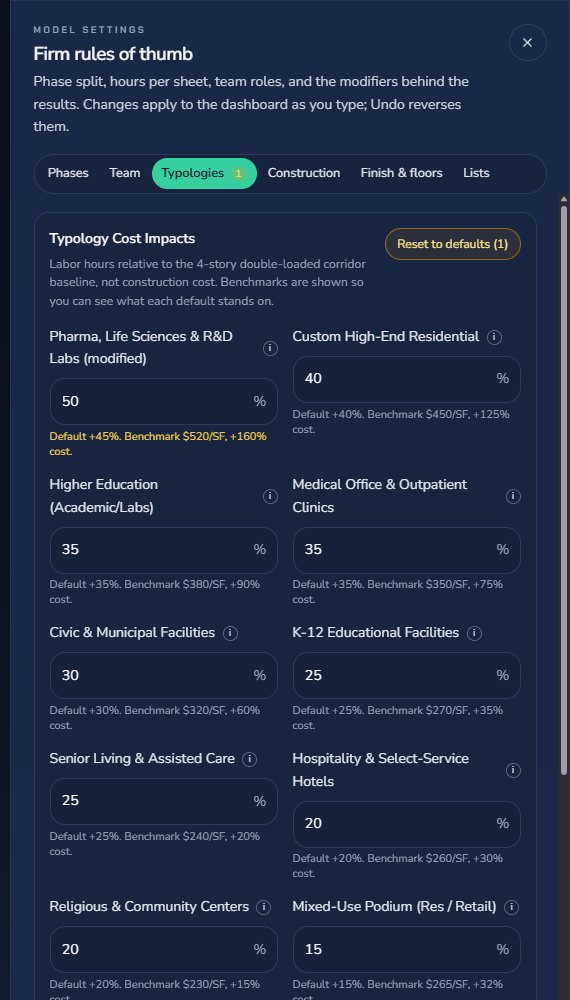
The Model settings drawer open on the Typologies tab, with a modified value marked and a Reset to defaults button.
The Model settings drawer: six tabs of firm rules, with the dashboard still live behind it.

Typology Cost Impacts

These percentages adjust the whole project labor model compared with the baseline typology: 4-Story Double-Loaded Corridor. A positive value means the project is expected to take more labor. A negative value means it is expected to take less labor. Under each field you see the default and the benchmark cost, a changed value is marked (modified), and Reset to defaults restores the whole tab.

Example: Townhomes & Row Houses at 10% means 10% more project labor than the baseline typology.

Construction Type Cost Impacts

These percentages adjust the whole project labor model based on the selected construction type. The defaults use Type 5A wood frame as the 0% baseline. The IBC list runs from Type 5B at -5% up to Type 1A at 30%, with podium and hybrid systems in between because they add structural coordination and documentation complexity. Each type's story cap is shown under its field.

Example: Podium / Mixed (5A over 1A) at 15% means 15% more project labor than the Type 5A baseline.

Finish Level Cost Impacts

These percentages apply only to CD-phase effort, because finish complexity mainly changes detailing, coordination, and documentation time. They are not a percentage of construction cost and they are not a percentage of the total architectural fee. The baseline is Gold at 0%. Because the fee is turned into sheets by dividing fee hours by hours per sheet after modifiers, a cheaper finish means the same fee supports more sheets; the reconciliation card says so when it applies.

Example: Silver at -5% means CD labor is reduced 5% compared with Gold-level CD effort.

Affordable Housing / PHFA Cost Impacts

These percentages apply only when Affordable Housing / PHFA Project is turned on. They increase the listed phases to account for agency coordination, submission requirements, compliance review, and extra documentation.

Example: SD Impact at 15% means SD labor is 15% higher than the same project without PHFA.

Floor Count Assumptions

These settings translate building height into a project-wide labor adjustment. Baseline Floors is the reference height. Impact Per Floor is the percent change for each floor above or below that baseline. Minimum Floor Impact prevents smaller buildings from reducing labor unrealistically far.

Example: baseline 4 floors and 2.5% per floor means a 5-floor project adds 2.5% project labor.

Hours Per Sheet

This is the office rule of thumb for translating drawing scope into labor. The full doc set value is used for CD sheet logic. The SD-only value is lower because schematic drawings usually require less documentation effort per sheet.

Example: 50 sheets x 40 hours per sheet = 2,000 baseline hours before modifiers.

Active Team Roles

These controls define who is actually on the project team. Roles marked inactive receive 0 hours and are removed from charts, staffing tables, and exports. The remaining active roles share the phase percentages.

Example: Principal + Sr Arch + Designer I means all phase hours are assigned only to those roles.
Assumptions

What the modifier percentages actually mean.

Every percentage in the Model settings drawer is a labor adjustment. It changes estimated hours first. Cost changes only because hours multiplied by billing rate creates cost. These percentages are not profit margins, not fee markups, and not construction-cost percentages unless the label specifically says construction cost.

  • 0% means no change from the baseline assumption.
  • Positive percentages add labor hours.
  • Negative percentages reduce labor hours.
  • Finish Level affects CD only; Typology, Construction Type, and Floor Count affect the project more broadly.
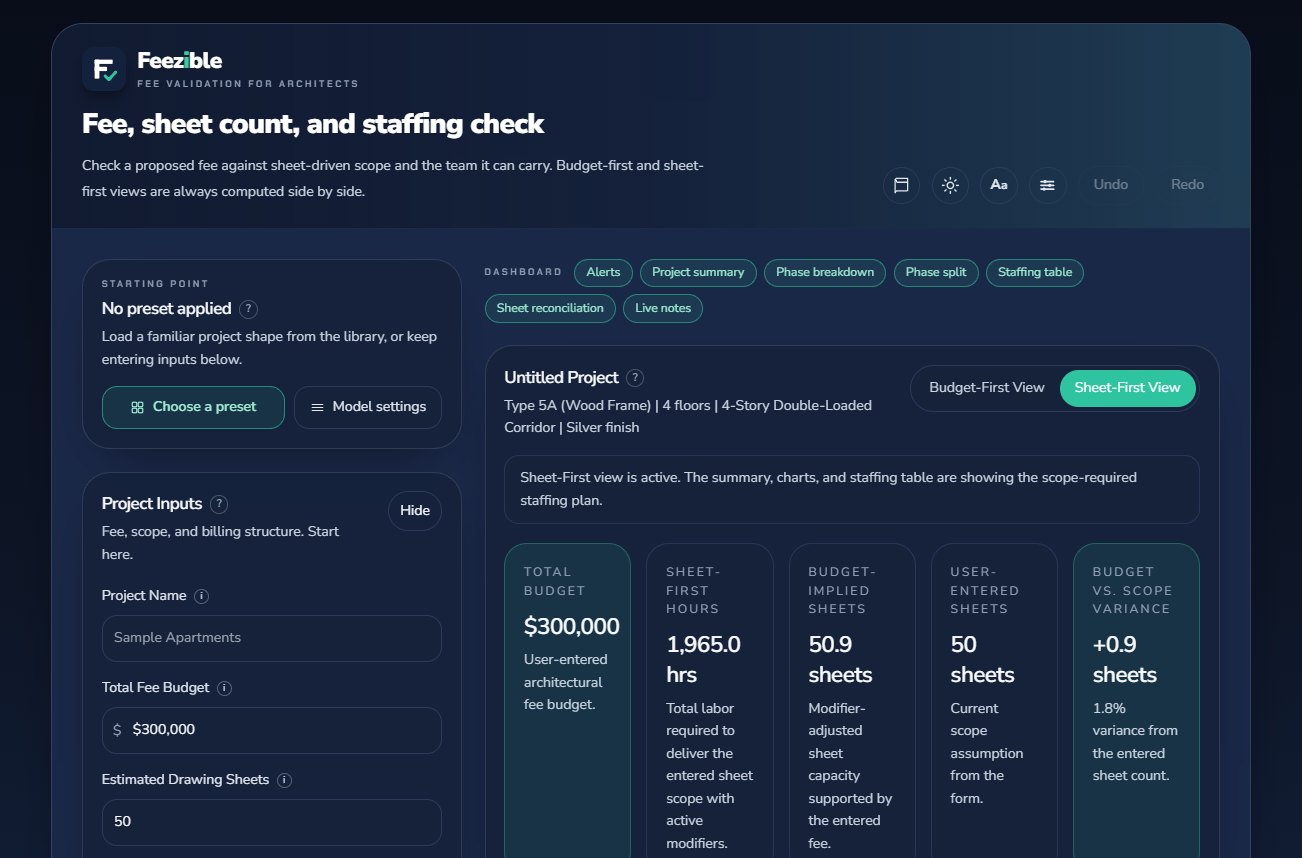
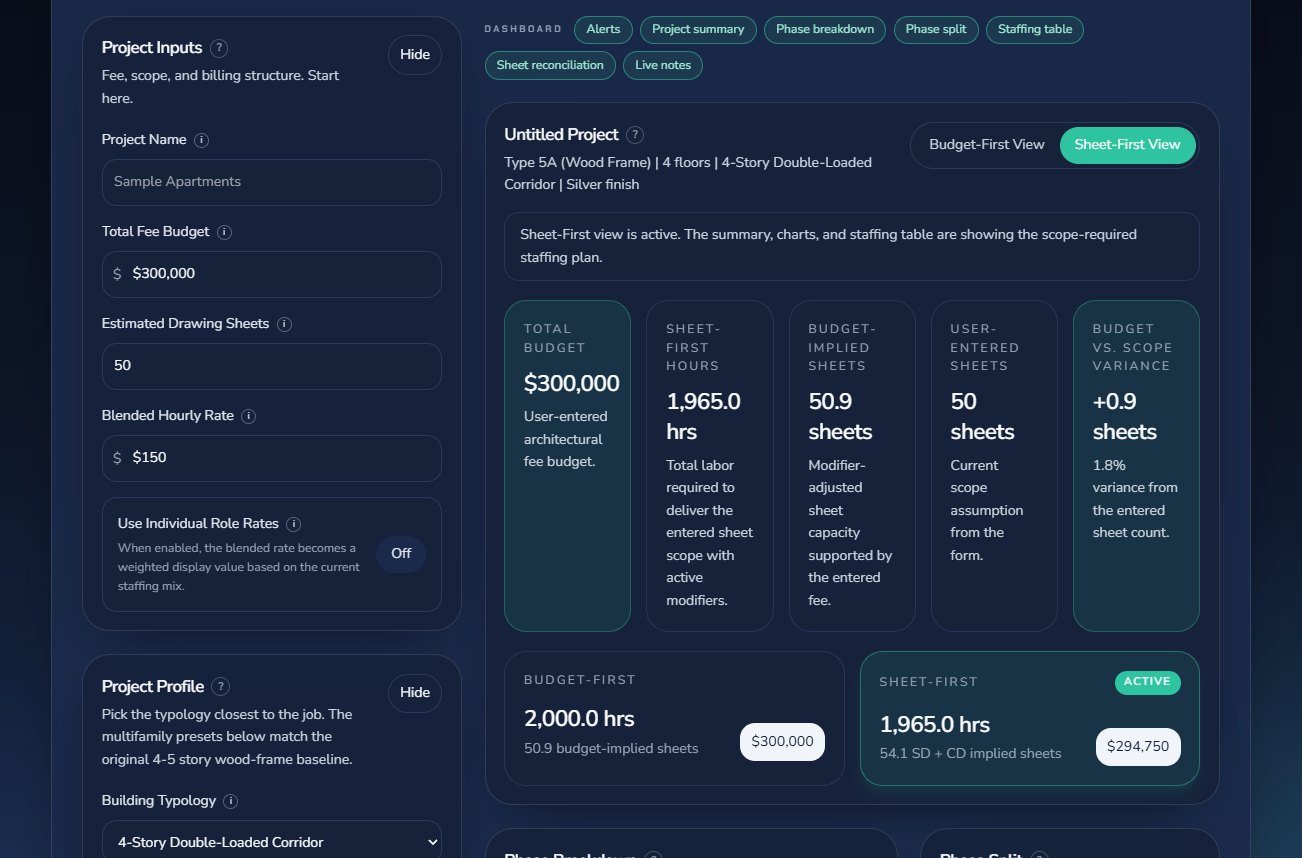
Sheet-First results dashboard showing budget, hours, budget-implied sheets, scope target, and variance.
Switch between Budget-First and Sheet-First to change the story the dashboard tells.
Step 04

Read the right side as a planning conversation.

Budget-First answers, “What can this fee support?” Sheet-First answers, “What fee and staffing are implied by this sheet scope?” Toggle between them when you are pressure-testing a proposal.

  • Start with the top metric cards for budget, total hours, sheet capacity, scope target, and variance.
  • Use the Budget-First and Sheet-First cards to compare the two planning paths side by side.
  • Use Phase Breakdown and Phase Split to see where labor is landing.
  • Sheet Count Reconciliation answers one question: does the fee cover the drawing set? It puts the sheets the fee supports next to the sheets you entered, and the fee those sheets need next to the fee you have. The SD set is shown separately because it is a different, smaller set of drawings.
  • Use the Detailed Staffing Table when you need role-by-role hours and cost.
Step 05

Export the version you are ready to share or audit.

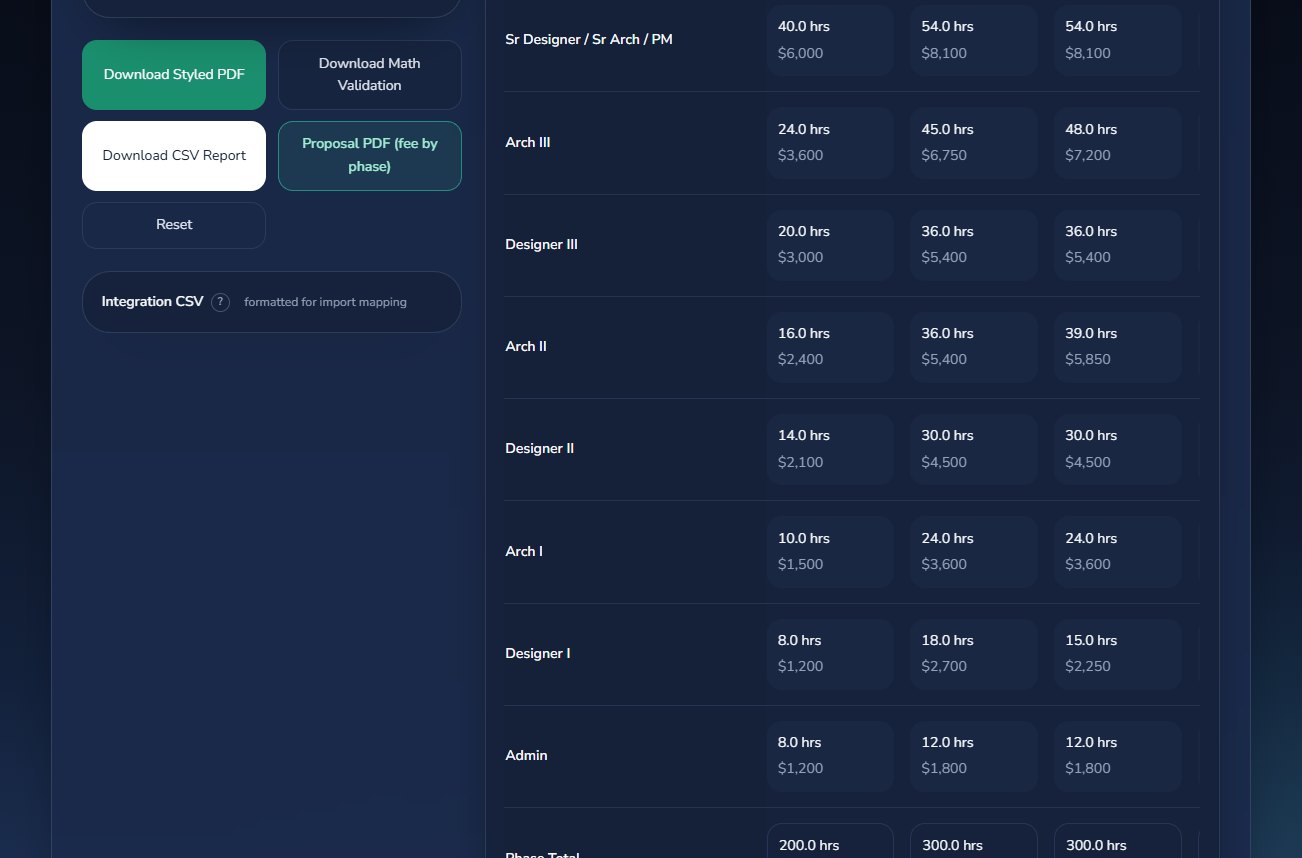
When the numbers look reasonable, use the export buttons in the left column and the staffing table controls on the right. The exports are meant for different audiences.

  • Download Styled PDF for a presentation-ready snapshot.
  • Download CSV Report for spreadsheet review.
  • Download Math Validation when someone needs the formulas and assumptions behind the result.
  • Proposal PDF (fee by phase) for a client-ready document with hours and share by phase. Firm accounts get their logo and colors on it.
  • Integration CSV, the drawer at the bottom of the column, for import into Monograph, Factor AE, BQE Core, or Deltek.
  • Export Staffing CSV or Copy for Google Sheets from the Detailed Staffing Table for role-level planning.
Lower Feezible interface showing the export buttons and Integration CSV drawer beside the Detailed Staffing Table.
Export controls sit under the input column; the staffing table has its own CSV and Google Sheets buttons.
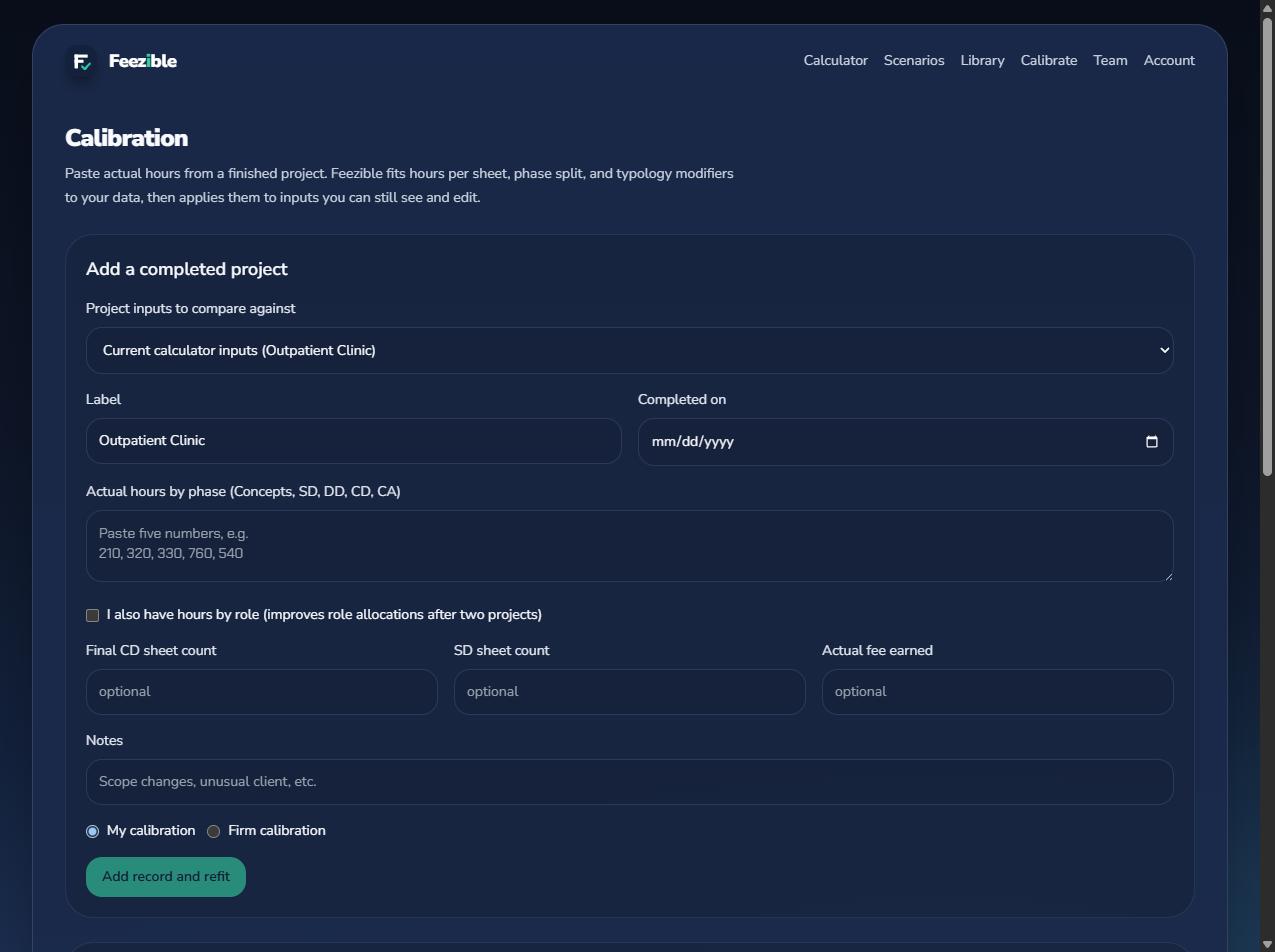
The Calibration page: a form for adding a completed project's actual hours on the left, and the fitted profile with before-and-after error on the right.
Calibration lives under the account menu. Paste actual hours from a finished project; Feezible fits its assumptions to them.
Step 06

Calibrate the model to how your projects actually perform.

The defaults are national rules of thumb. Your firm's finished projects are better data. Calibration compares what the model predicted with the hours you really spent, then moves hours per sheet, the phase split, and the typology modifier toward your numbers. It is part of Pro and Firm.

  • Gather the actuals for one finished project: hours by phase (Concepts, SD, DD, CD, CA) from timesheets, the final CD sheet count, the SD sheet count if you have it, the fee earned, and hours by role if your time system tracks them.
  • Open the account menu and choose Calibration. Under Project inputs to compare against, pick the saved scenario the project was bid with, or the current model inputs if you have just re-entered them.
  • Give it a label and completion date, then paste the five phase totals in order. A preview line shows what the model said, what the actual was, the scale between them, and the implied hours per sheet.
  • Tick I also have hours by role and fill the grid when you can. After two projects with role data, calibration also fits the role allocation for each phase.
  • Click Add record and refit. The profile card shows hours per sheet and the phase split now versus fitted, the mean error before and after, and a before-and-after table for each phase.
  • Click Apply to model. Inputs move part of the way toward the fitted values: one project moves them a third of the way, four projects two thirds, ten projects most of the way. Re-applying converges instead of compounding, and Undo reverses it.
  • Keep adding projects as they close out. Each one sharpens the fit. On the Firm plan, choose Firm calibration when adding a record so every seat shares one profile; owners and admins can recompute it at any time.
  • Calibration writes to Hours Per Sheet, the phase percentages, and Typology Cost Impacts, and to Role Allocation Defaults once it has role data. All of them stay visible and editable in Model settings.
  • On the Typologies tab a calibrated typology shows as (modified) with its default underneath, so you can always see what changed and reset it.
  • The realized billing rate (fee divided by actual hours) is shown in the preview but never applied. Set rates yourself, below.
Firm averages

Set the rest from your firm's averages.

Calibration fits the assumptions it can measure from phase hours. The remaining defaults are yours to set from your own records. Work through these once, then save the result so every new project starts from your firm's numbers instead of the national defaults.

  • Save the calibrated rates and typologies in the Rate library so they persist. Save a preset for each project type you do often. On the Firm plan, share both with the whole firm.
  • Recheck the averages once or twice a year, or whenever the firm's mix of work changes.

Individual Role Rates

Turn on Use Individual Role Rates and enter the billing rate your firm actually charges for each role. The defaults are national averages and the i on each field shows the typical range. The blended rate then becomes a weighted result of your staffing mix.

Source: your current rate sheet, or fee earned divided by hours on recent projects.

Hours Per Sheet

Calibration fits this from phase hours, but you can also set it directly: total hours through CD on a finished project divided by its final sheet count, averaged over several projects. Set the SD-only value the same way from SD hours and SD sheets.

Example: 2,300 hours through CD on a 52-sheet set is about 44 hours per sheet.

Phase Allocation and Role Allocation

Average each phase's share of total hours across finished projects and enter the shares on the Phases tab. Do the same for each role inside each phase on the Team tab. Lock a phase you are sure of and let the others rebalance.

Example: CD averaging 38% of hours across five projects means set CD to 38% and lock it.

Typology and Construction Type Impacts

Compare hours per sheet on projects of one type against your baseline type. The ratio, minus one, is the labor impact. Enter it on the Typologies or Construction tab of Model settings. Calibration does this for typologies automatically; construction types are set by hand.

Example: podium projects at 48 hrs/sheet against a 40 hrs/sheet baseline means about +20%.

Finish Level and Floor Count

Leave these at the defaults unless your records show a clear pattern. If Gold-finish projects consistently run heavier in CD than Silver, widen the Finish Level gap. If tall projects do not cost your firm more per floor, reduce Impact Per Floor.

Rule: change a default only when at least two or three projects point the same way.

Active Team Roles and Dropdown Lists

Turn off roles your firm does not staff so hours never land on them (Team tab), and hide the typologies and construction types you never use (Lists tab). Neither changes the math; both make the model match how your firm works.

Example: a firm with no Designer III turns that role off once and forgets about it.
Mental model

The fastest way to use Feezible.

For most projects, use this five-move rhythm. It keeps the model engine from feeling like a wall of numbers and turns it into a quick planning loop.

1.
Choose a preset, then enter fee, sheets, and rate.
2.
Describe the building profile and finish level.
3.
Tune the firm rules in Model settings when needed.
4.
Compare Budget-First against Sheet-First.
5.
Export the result, and calibrate when the project closes out.

© 2026 BTG LLC. All rights reserved. · Terms of Service · Privacy Policy · support@feezible.us